

UberEats Integration: Onboarding Process
Integration between UberEats & Focus is available for FocusOnline users. For more information about the integration, click here.
Important: POS Setup
please be sure to follow the instructions at this article to set up Focus for UberEats integrations
Once you've configured Focus for UberEats integration, it's time to setup FocusOnline to send your menu info to Uber.
FocusOnline UberEats Setup
- Log into CommandCenter (link here)
- From the menu under the Online Order Setup locate Integrations and click on it
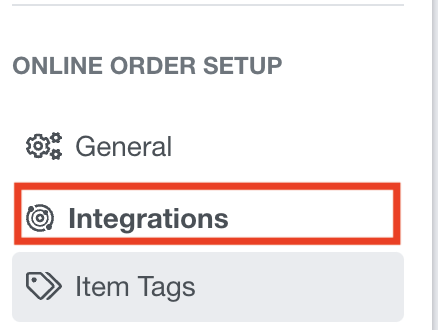
- The first tab is the UberEats integration tab.
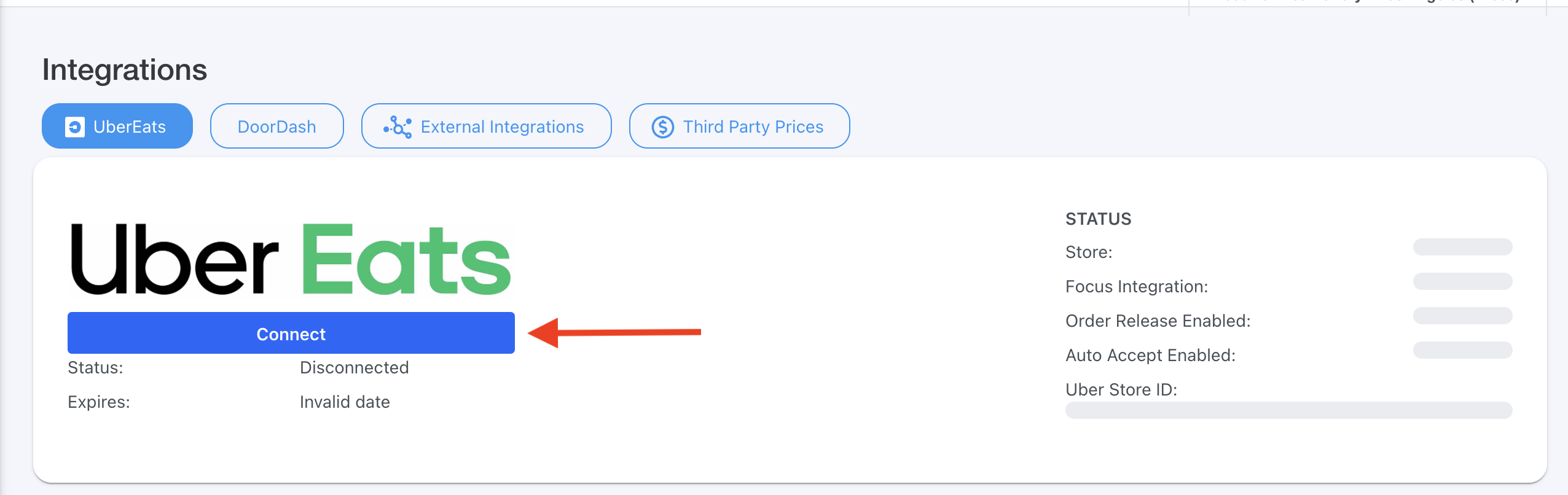
- Before clicking Connect, be sure you are signed out of your Uber or UberEats account.
- Failure to do so may result in your account not being connected properly.
- Click Connect under the UberEats logo
- You'll be taken to the UberEats Sign In page
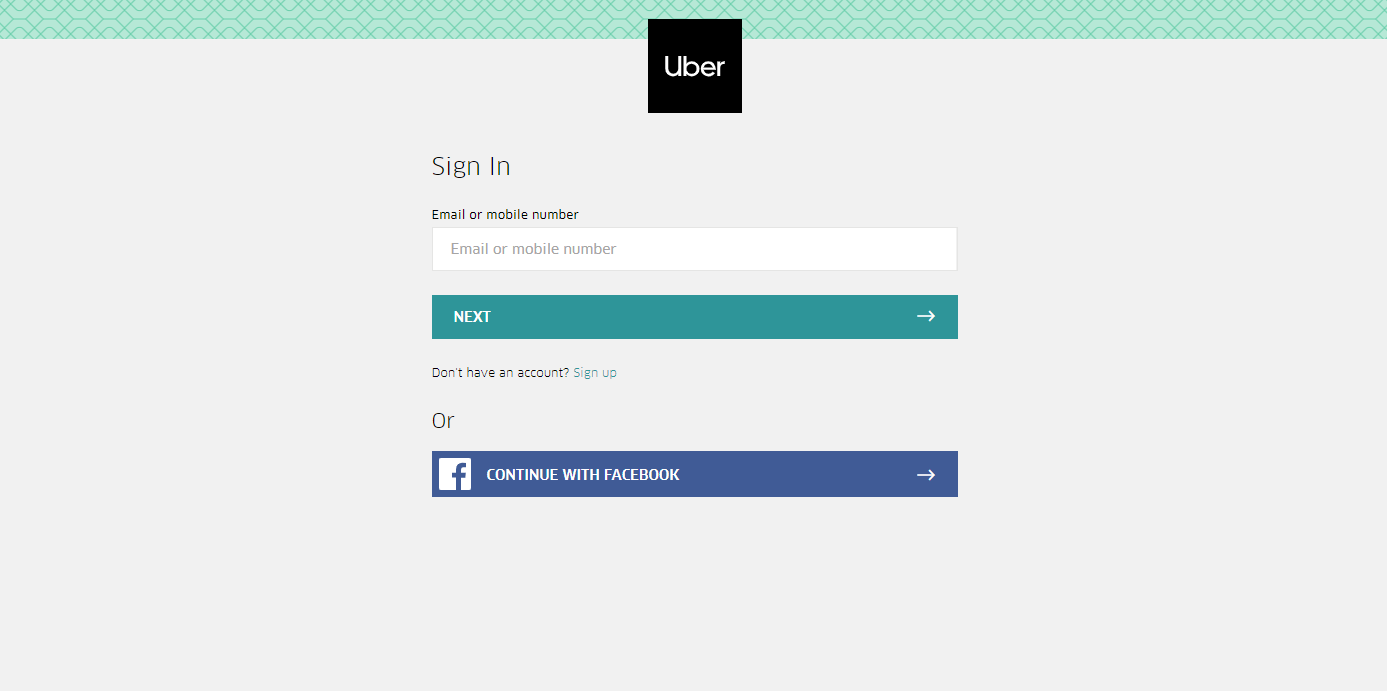
- Enter the email address or phone number tied to your restaurant's UberEats profile
- Next enter your password.
- If your username and password are valid, you'll be notified:
Your account has been connected. You can close this page. - Go ahead and close that page/browser tab
- Go back to CommandCenter and the Integrations menu that you were previously on.
- Your UberEats integration page should look similar to the image below. Some things may be different based on the point that you are in with the integration.
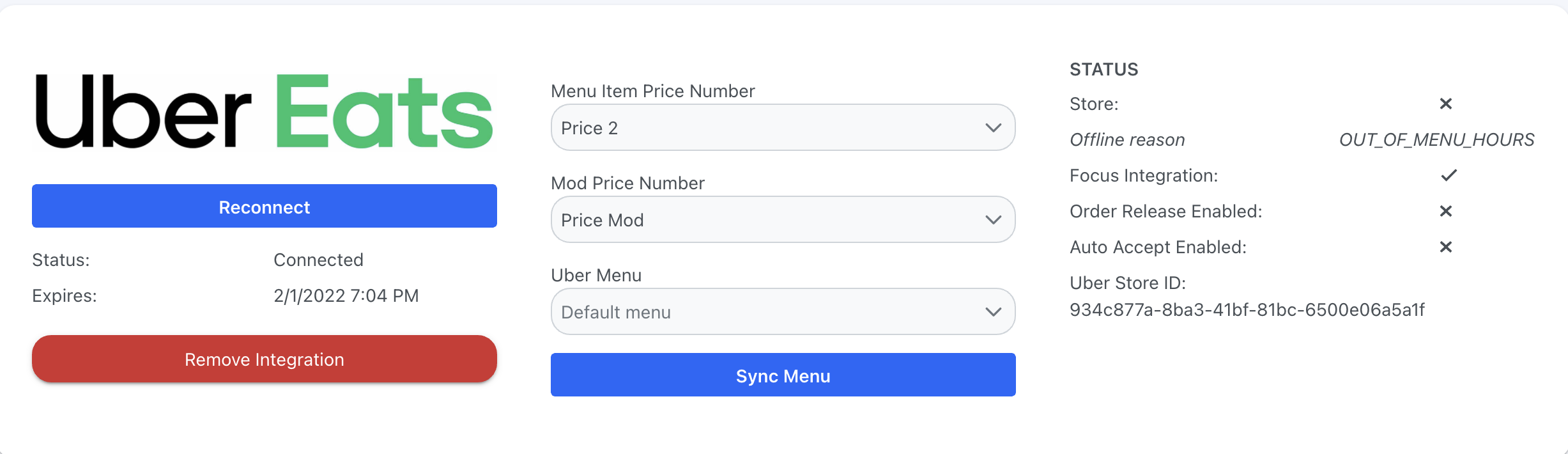
- Now, go ahead and pick which Menu Item Price Number and Modifier Price Number you want to use for Uber orders.
- After selecting your desired price numbers, press "Save"
- Lastly, hit "Upload Menu" to push your FocusOnline menu to Uber.
- From there, you can go to UberEats Restaurant Portal to check on your menu and make any Uber-specific modifications.
- Congrats!
Comments
0 comments
Please sign in to leave a comment.